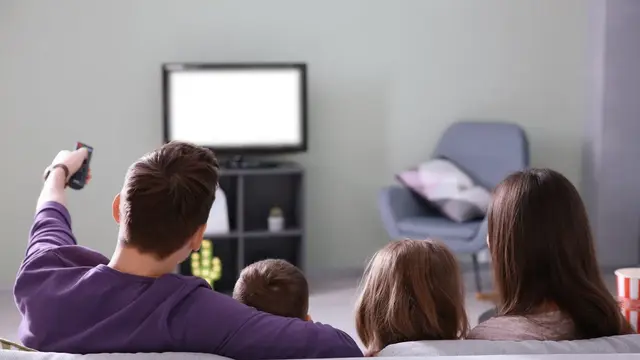
Burmese TV APK Parental Controls and Family Viewing Guide
Learn how families use Burmese TV APK responsibly with viewing habits, device settings, and supervision tips for family-friendly Myanmar TV watching.

Blog
Watch Burmese TV APK on a Windows PC or laptop using an Android emulator, with setup steps, performance tips, and big-screen viewing advice.
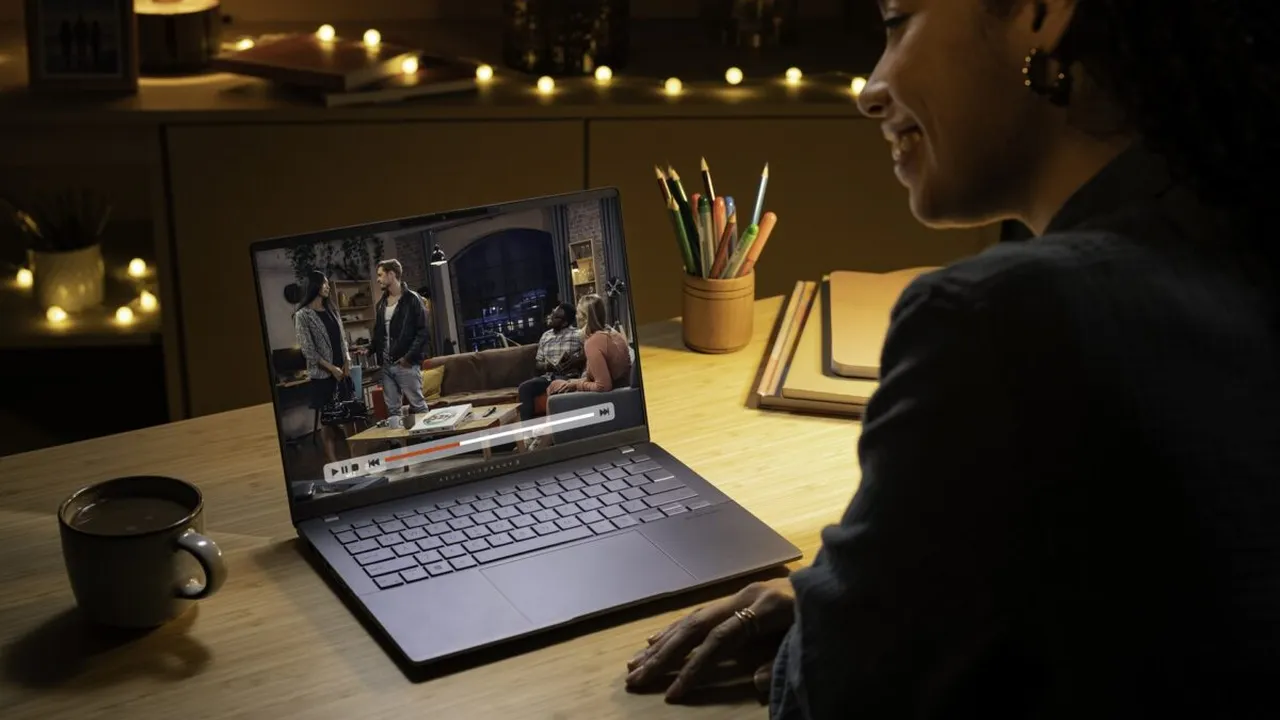
A laptop or desktop screen is bigger than a phone and already sitting on your desk. With an Android emulator, Burmese TV APK runs on Windows much like it does on a phone.
This guide explains emulator setup, installation inside it, and the settings that keep playback smooth. Device requirements in general are covered by our system requirements guide.
The Burmese TV APK page brings together the download, the features and the latest version details in one place.
A PC offers a larger screen than a phone, comfortable desk viewing, and easy multitasking: news in one window while you work in another.
For students and office workers, the laptop is often the most available screen in the house.
Well-known Android emulators such as BlueStacks or NoxPlayer run APK applications on Windows. Choose one, download it only from its official website, and avoid modified versions.
Enable virtualization in your PC's BIOS settings where possible; emulators run dramatically better with it on.
Install the emulator, sign in if it asks, then open the Burmese TV APK file with the emulator or use its built-in APK install option.
The process mirrors a phone: allow installation permissions, wait for completion, and launch from the emulator's home screen.
Give the emulator at least two CPU cores and 4 GB of RAM in its settings if your PC allows. Close heavy programs while streaming to keep playback smooth.
Wired internet or a strong Wi-Fi signal matters as much on PC as on any device.
The PC suits personal viewing at a desk. For shared living-room viewing, Android TV or Firestick remains more natural, as our Firestick guide explains.
Many viewers use both: PC during the day, television in the evening.
Well-known emulators downloaded from their official websites are widely used and safe. Avoid modified builds from file-sharing sites.
A modern dual-core PC with 8 GB of RAM runs an emulator comfortably for video. Virtualization support in the processor makes the biggest difference.
Yes. Emulators offer full-screen modes, and playback behaves like a large tablet once the app is running.
Conclusion
Running Burmese TV APK on a Windows PC through a reputable emulator is straightforward and turns the computer you already own into another Myanmar TV screen.
Set virtualization on, allocate enough resources, and playback stays smooth.
Download Burmese TV APKLearn how families use Burmese TV APK responsibly with viewing habits, device settings, and supervision tips for family-friendly Myanmar TV watching.
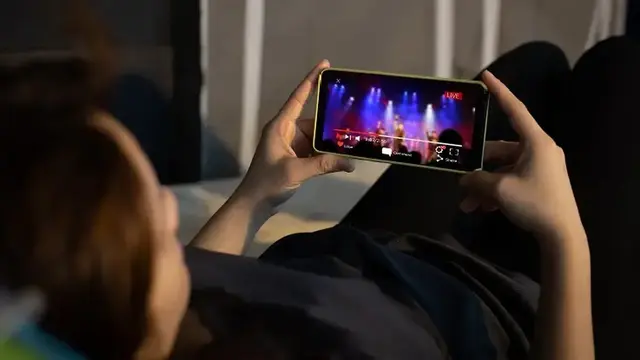
Save mobile data while watching Burmese TV APK with practical tips on stream quality, Wi-Fi use, background data, and viewing habits.

Improve Burmese TV APK picture quality with the right playback settings, display adjustments, and connection choices for phones, TVs, and Firestick.