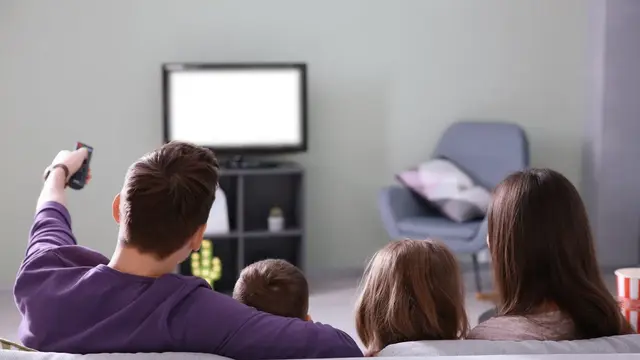
Burmese TV APK Parental Controls and Family Viewing Guide
Learn how families use Burmese TV APK responsibly with viewing habits, device settings, and supervision tips for family-friendly Myanmar TV watching.

Blog
Cast Burmese TV APK from your phone to a smart TV with this step-by-step guide covering Chromecast, screen mirroring, and common casting fixes.
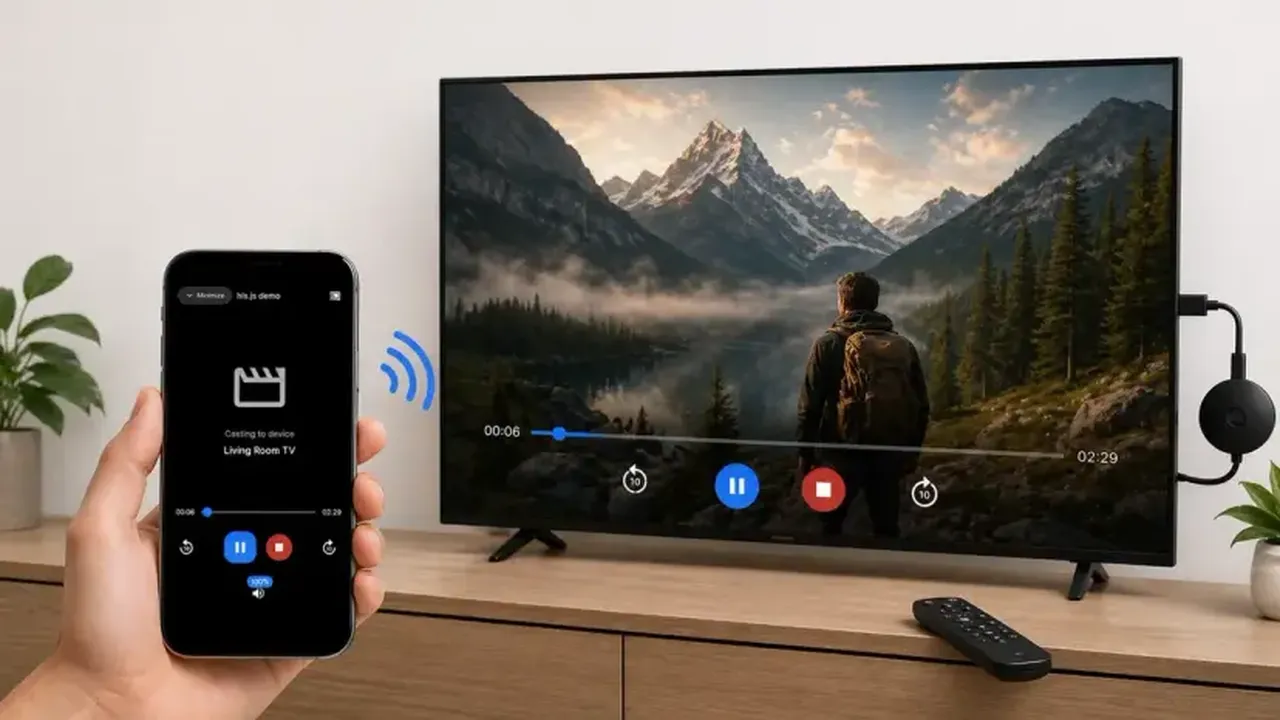
Watching on a phone is convenient, but Myanmar dramas, news, and football deserve the big screen. Casting sends what plays on your phone to your smart TV in a few taps.
This guide covers the two main methods, built-in casting and screen mirroring, plus the fixes for the problems people meet most often. For a permanent big-screen setup, compare the Android TV installation guide.
The Burmese TV for Android page covers the download and setup from the very start.
Casting sends only the video to the TV, leaving your phone free for other tasks. Mirroring copies your whole phone screen, including notifications, onto the television.
Casting gives better quality and privacy; mirroring works with almost any content and older televisions.
Both devices must share the same Wi-Fi network. This single requirement causes most casting failures, especially in homes with dual-band routers where the phone and TV land on different bands.
Update the app and the TV software, then restart both devices if casting options do not appear.
Open Burmese TV APK on your phone and start the channel you want to watch. Look for the cast icon in the player or open your phone's quick settings for the built-in cast or Smart View option.
Select your television from the list, wait for the connection, and control playback from the phone.
If casting is unavailable, enable screen mirroring on the TV, then open your phone's mirroring feature, often called Smart View, Screen Cast, or Wireless Display.
Your phone screen appears on the TV; rotate the phone to landscape for full-screen television.
If the TV never appears, recheck the shared Wi-Fi requirement first. If video lags, move closer to the router or reduce other network traffic.
A wired TV connection, where supported, gives the steadiest casting.
Almost always because the phone and TV are on different Wi-Fi networks or different router bands. Connect both to the same network name and try again.
Casting is quicker to start and needs no extra installation. A direct Android TV or Firestick installation is more convenient for daily viewing.
Mirroring uses more battery because the phone screen stays active. Casting lets the phone rest once playback starts.
Conclusion
Casting Burmese TV APK takes under a minute once both devices share one Wi-Fi network, and it turns any smart TV into a Myanmar television screen.
Keep the same-network rule in mind and nearly every casting problem solves itself.
Download Burmese TV APKLearn how families use Burmese TV APK responsibly with viewing habits, device settings, and supervision tips for family-friendly Myanmar TV watching.
Save mobile data while watching Burmese TV APK with practical tips on stream quality, Wi-Fi use, background data, and viewing habits.
Improve Burmese TV APK picture quality with the right playback settings, display adjustments, and connection choices for phones, TVs, and Firestick.